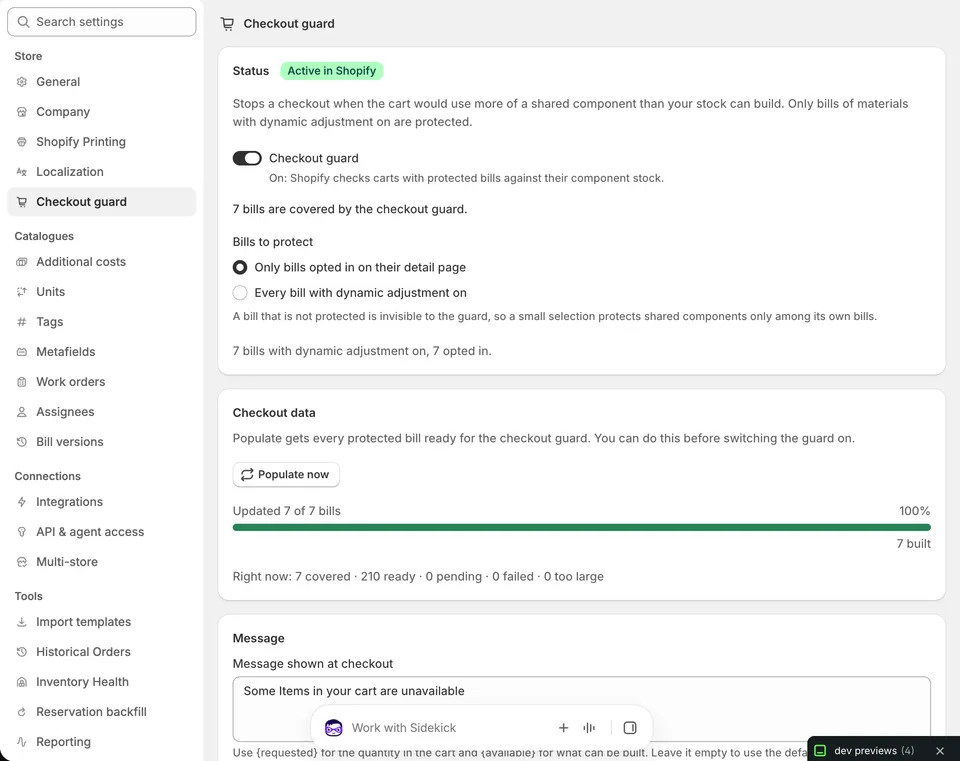
Settings → Checkout guard stops a checkout when the items in a cart, taken together, need more of a component than you have in stock. The buyer sees your message and can change the cart. The guard is part of the Elevate plan.
Assemblified keeps the sellable quantity of each finished good up to date from its components. Each of those numbers is right on its own. Two finished goods that use the same component each count the full stock of that component, though. Together they can promise more than you have. Shopify checks each product on its own, so it would accept that cart.
An example: you have 10 bulbs. A desk lamp and a floor lamp each use one. Both show 10 available. A cart with 6 of each needs 12 bulbs. Without the guard, Shopify accepts it. With the guard on, the buyer sees your message instead, and checkout cannot go ahead until the cart fits your stock.
The guard checks carts in your online store, in Shopify’s checkout and in draft orders, both in the admin and at checkout. A draft order your stock cannot build is stopped the same way.
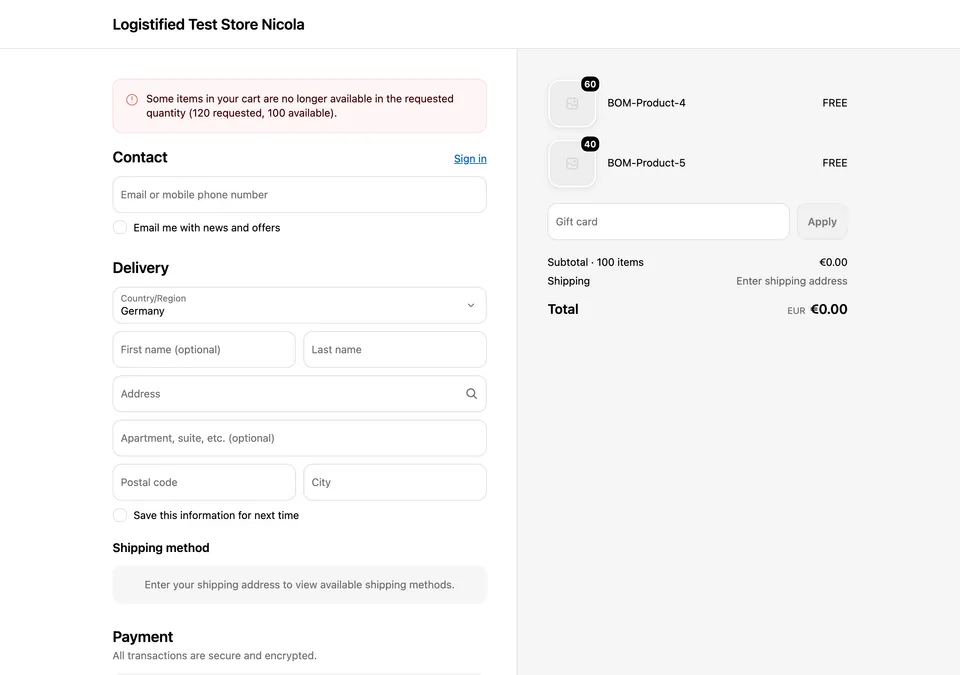
What the buyer sees: the default message with the quantities filled in
There are two switches that turn the guard off. Each works on its own, takes effect within seconds, and works on every plan. Once the guard is off, no cart is checked and every checkout goes through as normal.
In Shopify
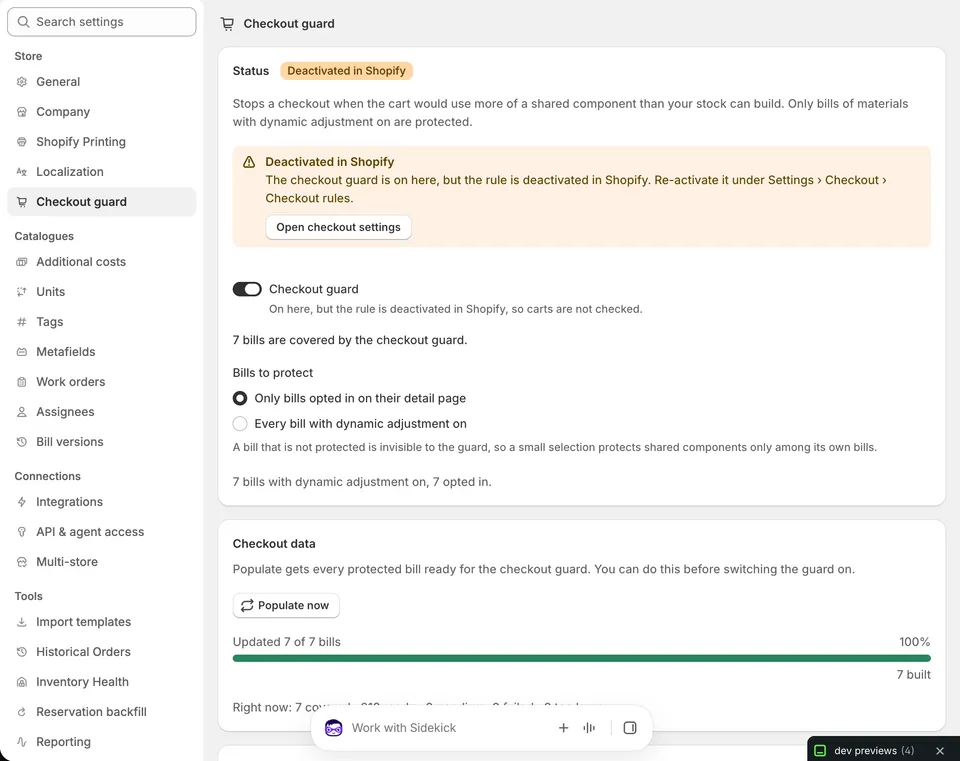
In your Shopify admin, go to Settings → Checkout → Checkout rules and deactivate Assemblified checkout guard. This needs nothing from Assemblified, so it works even if the app is not responding. Assemblified then shows Deactivated in Shopify on its settings page.
In Assemblified
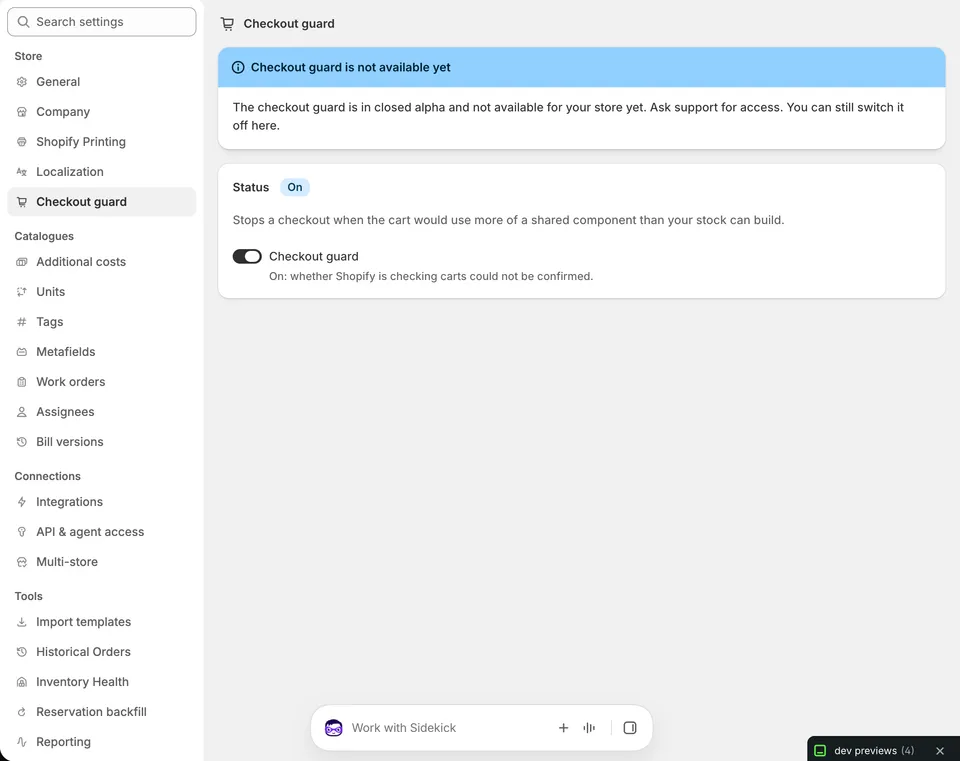
Open Settings → Checkout guard and switch the guard off. Assemblified turns it off in Shopify for you. This switch is always there, before alpha approval and on every plan.
If the page says Still active in Shopify after you switched the guard off here, Assemblified could not reach Shopify. Deactivate Assemblified checkout guard under Checkout rules yourself; carts are checked until that is done.
If the page says Not applied in Shopify yet, your settings are saved, but Shopify has not accepted the latest change. Until it does, checkout keeps using your previous settings. Assemblified retries on its own, and the notice goes away once Shopify accepts the change.
To switch it back on, use the same place you used to switch it off. It goes through the same short start-up as the first time.
In Shopify: the rule under Settings → Checkout → Checkout rulesAfter the rule was deactivated in Shopify, the app says so and links to the Checkout rules page
When a buyer checks out, the guard looks at all protected items in the cart together:
It adds up how much of each component the whole cart needs, across every item that uses it.
It follows each recipe down through sub-assemblies and counts stock you have already assembled, the same way the sellable quantity does.
In the default order tracking mode, it treats orders you have taken but not yet fulfilled as already using their components.
It compares the total with your stock at the locations you chose. If the stock covers the cart, checkout continues. If not, the buyer sees your message.
Only bills with dynamic adjustment on can be protected. Under Bills to protect, choose one of these:
Only bills opted in on their detail page (the default). Opt a bill in with Protect at checkout on its detail page, beside the dynamic adjustment switch. To opt in many bills at once, select them on the finished goods list and choose BOM settings → Checkout guard → Enable.
Every bill with dynamic adjustment on.
A bill that is not protected is not checked. A small selection therefore protects a shared component only among the bills you selected.
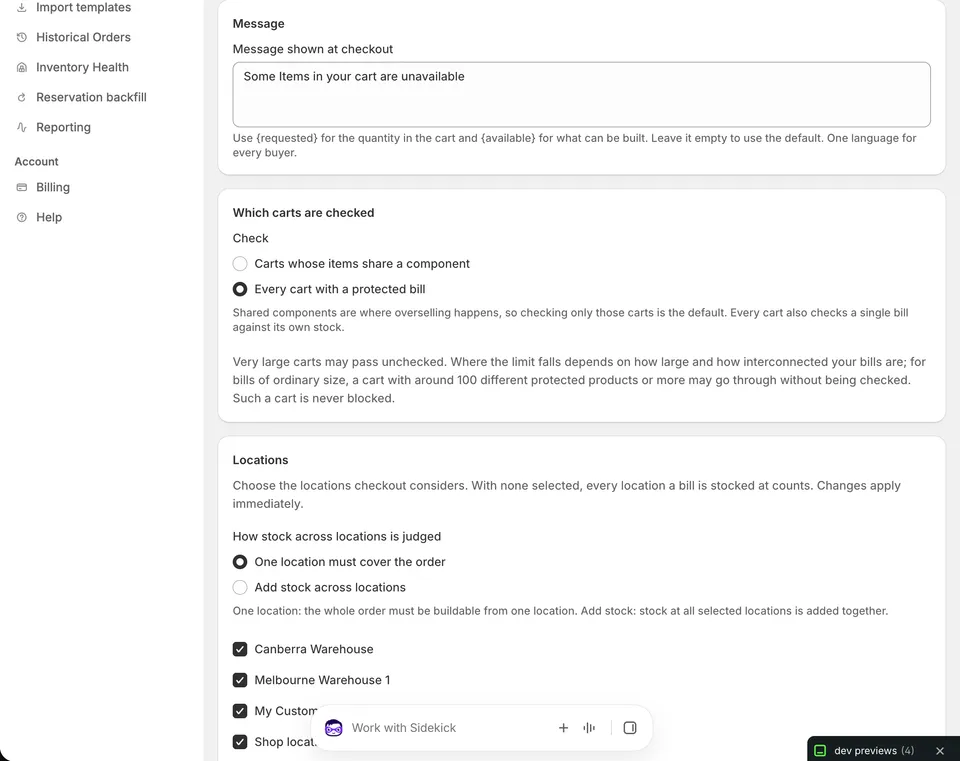
One location must cover the order. The whole order must be buildable from one location. Stock scattered over several locations does not count together, and one good location is enough even if another is short.
Add stock across locations. Stock at all selected locations is added together.
Bills with location-specific recipes are always checked per location, whichever option you choose.
Below the options you can pick which locations the check considers. With none selected, every location a bill is stocked at counts. A change here takes effect straight away.
The message is what a buyer sees when the check stops their cart. It shows in the cart and at checkout. Use {requested} for how many units of the shared material the cart needs and {available} for how many are in stock. The shared material is the one the cart is furthest short of, and both numbers count units of that material, not of the products in the cart. Leave it empty to use the default: “Some items in your cart can’t be bought together in these quantities right now. Please reduce a quantity or remove an item.” Under the field, Buyers see previews your message with example numbers filled in.
The message is a single text in one language. It is shown to every buyer as you write it, whatever language their checkout is in. You can change the message only while the guard is on.
Get access. If the page says Checkout guard is not available yet, ask support for access first (see the notice at the top of this page).
Turn on Auto-update on inventory change under Settings → General. The guard needs it and cannot be switched on without it.
Choose which bills to protect. Pick an option under Bills to protect. If you keep the default, opt bills in on their detail page or from the finished goods list. The page shows how many bills are covered.
Optional: select Update checkout data. This gets your protected bills ready before you switch the guard on. You can skip it; switching the guard on does it for you. The page shows the progress and tells you if a bill could not be prepared.
Switch the guard on. The status goes from Activating to Updating to Active in Shopify. On a small store this takes about a minute; with many protected bills it can take longer. Carts are checked once the status shows Active in Shopify.
Write your message and choose your options. Set the message, Which carts are checked and Locations. These can only be changed while the guard is on.
Try it. In your online store, add two bills that share a component in quantities your stock cannot build, and go to checkout. You should see your message on the cart page and at checkout.
To prepare only some bills again, for example when the page reports a problem with them, select them on the finished goods list and choose Maintenance → Update checkout guard.
The guard on: status, the switch, the covered bills and the Bills to protect choice
Very large carts may pass unchecked. Shopify limits how much work a check at checkout may do. We tested this: carts of a few dozen protected products are checked normally, and where the limit falls depends on how large and how interconnected your bills are. For bills of ordinary size with a handful of shared components, a cart with around 100 different protected products or more may pass unchecked. Such a cart is never blocked. The settings page states this under Which carts are checked.
Not checked: point of sale, order edits and subscription renewals. The guard does not run there.
Multi-store. On a multi-store main store, the guard checks the main store’s own checkouts. It does not take orders placed on partner stores into account.
The checkout guard is part of the Elevate plan and also needs alpha approval from support. On a lower plan, or while Assemblified cannot confirm your plan, the page shows the guard’s status, an upgrade button and the off switch. Switching the guard off always works, on every plan.